Choosing a gaming monitor: resolution, Hz and panel
Which gaming monitor suits your PC or console? Resolution, refresh rate, IPS, VA and OLED, and HDMI 2.1 explained.

Short answer: First choose the resolution and size: 24 inches with Full HD, 27 inches with QHD, or 27 to 32 inches with 4K. Then choose the refresh rate (in Hz) that your graphics card or console can actually reach. An IPS screen is a safe choice, VA gives more contrast, and OLED gives true black and the fastest response, but can burn in. If you play on a PS5 or Xbox Series X, look for HDMI 2.1.
You buy a gaming monitor for years, and it decides how all your games look. Here is what to look for, with examples from our monitors.
Resolution and size
The resolution is the number of pixels. The bigger the screen, the more pixels you need for a sharp picture at desk distance.
- Full HD (1920 x 1080): mostly at 24 inches, such as the LG UltraGear 24G411B. Light work for your graphics card.
- QHD (2560 x 1440): the common choice at 27 inches, such as the AOC Q27G4XF and the Samsung Odyssey G5 G50F.
- 4K (3840 x 2160): at 27 and 32 inches, such as the Samsung Odyssey G8 4K OLED. The sharpest, but you need a heavy graphics card to get many frames per second.
At a glance:
| Resolution | Pixels | Size | Work for your graphics card |
|---|---|---|---|
| Full HD | 1920 x 1080 | 24 inches | light |
| QHD | 2560 x 1440 | 27 inches | medium |
| 4K | 3840 x 2160 | 27 to 32 inches | heavy |
The higher the resolution, the harder your PC has to work, so choose a screen that suits your graphics card. Read more on our gaming PCs page.
Refresh rate in Hz
The refresh rate is how many times per second the screen shows a new picture. An ordinary office screen does 60 to 100 Hz, gaming monitors usually 144 Hz or more. The higher it is, the smoother motion looks, especially in fast shooters.
A high number only helps if your PC or console also makes that many frames per second. A 300 Hz screen such as the ASUS TUF VG27AQM5A, or a 500 Hz one such as the Samsung Odyssey OLED G6, is mainly meant for competitive games that reach such numbers.
Some 4K screens have a dual mode: in 4K they run at a lower rate, in Full HD at a much higher one. According to its product name, the AOC U32G4U does 160 Hz in 4K and 320 Hz in Full HD.
Monitors in this guide
- LG
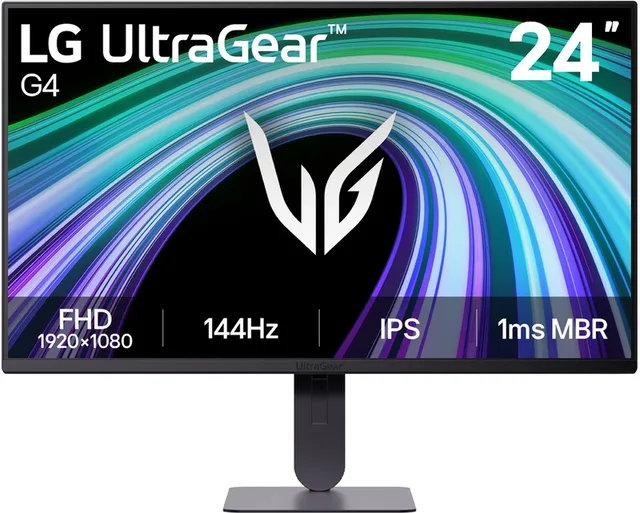
UltraGear 24G411B-B - Full HD IPS Gaming Monitor - 144hz - 24 inch
- AOC
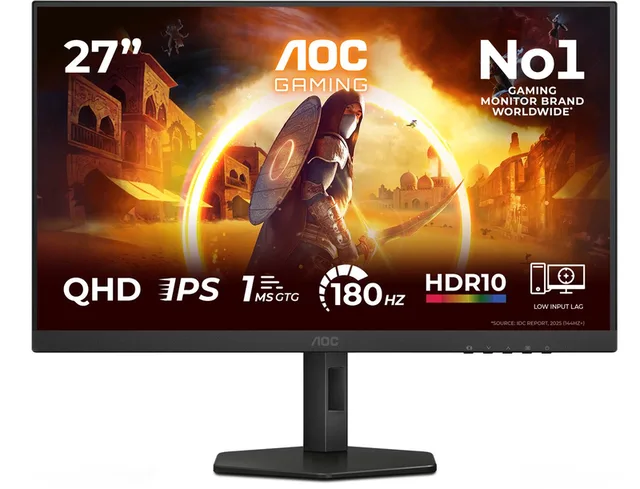
G4 Q27G4XF - QHD IPS Gaming Monitor - 180hz - Verstelbaar - 27 inch
- Samsung
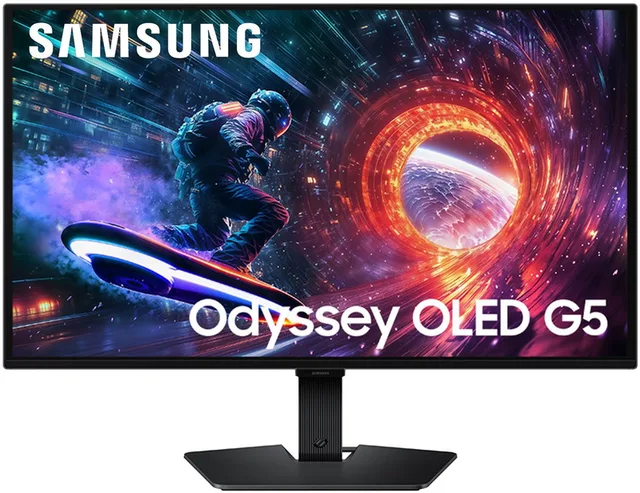
Samsung 27 Odyssey G50F LS27FG502SUXEN QHD 180Hz Gaming Monitor
- ASUS
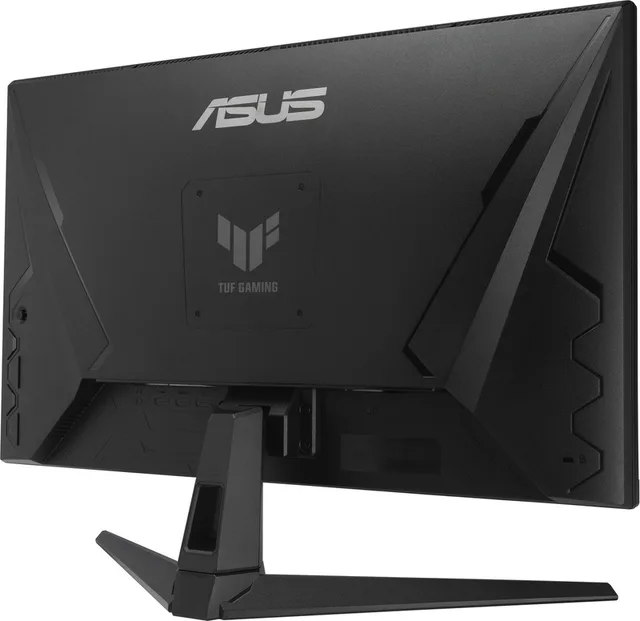
TUF Gaming VG27AQM5A - QHD Fast IPS Gaming Monitor - 300Hz - 0.3ms - G-Sync Compatible - 27 Inch
- MSI
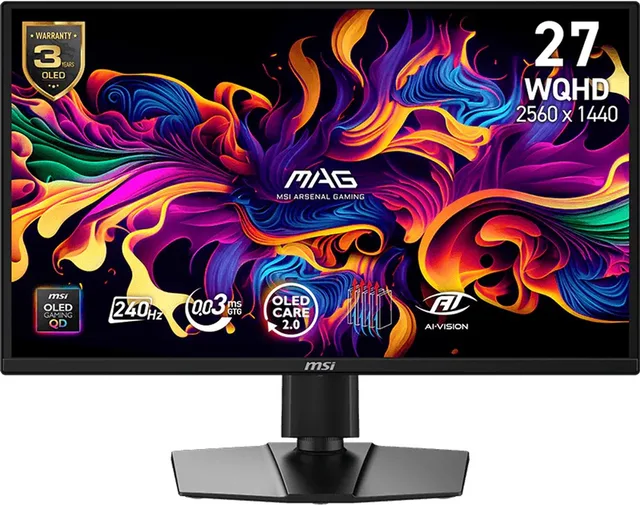
MAG 272QP QD-OLED X24 - QHD OLED Gaming Monitor - 240hz - HDMI 2.1 - USB-hub - USB-C 15w - 27 inch
- Samsung
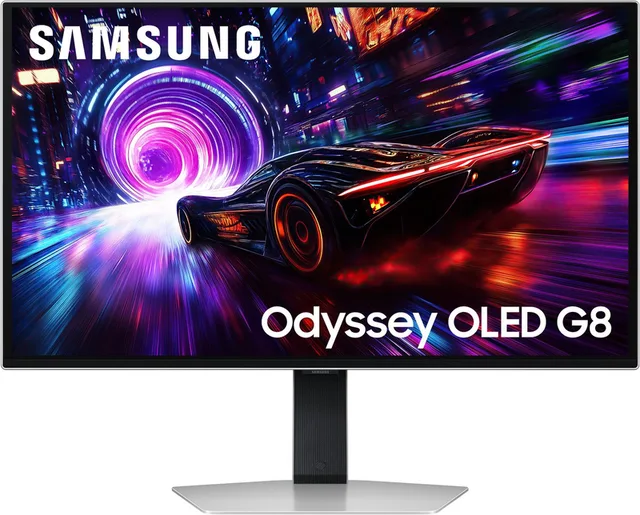
Odyssey G8 LS27FG812SUXEN - 4K OLED Gaming Monitor - 240Hz - 27 Inch
IPS, VA or OLED
- IPS: good colours and viewing angles, and fast enough for most games. A safe choice, such as the AOC Q27G4XF and the ASUS TUF VG27AQM5A.
- VA: more contrast, so deeper black than IPS. Many curved screens are VA, such as the AOC Q27G3XMN. In fast motion, some VA screens show a little smearing behind dark objects.
- OLED: every pixel makes its own light, so black is truly black and response time is very short. Examples are the MSI MAG 272QP QD-OLED and the Samsung Odyssey OLED G6. The downside: images that stay still for a long time, such as a taskbar or a game's HUD, can burn in. Makers build in protection against it. MSI, for example, lists a three-year warranty that includes burn-in on many of its QD-OLED screens. Check the warranty terms per brand.
IPS, VA and OLED in this guide
- AOC
G4 Q27G4XF - QHD IPS Gaming Monitor - 180hz - Verstelbaar - 27 inch
- ASUS
TUF Gaming VG27AQM5A - QHD Fast IPS Gaming Monitor - 300Hz - 0.3ms - G-Sync Compatible - 27 Inch
- AOC
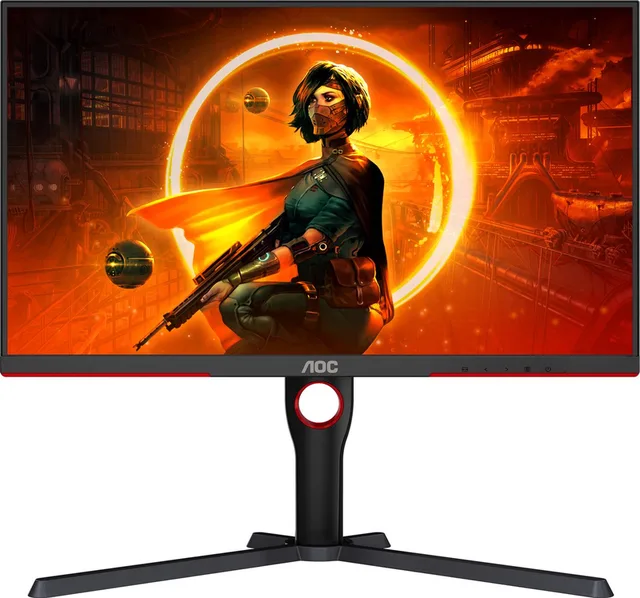
G3 Q27G3XMN - QHD VA Gaming Monitor - 180hz - HDR1000 - 27 inch
- MSI
MAG 272QP QD-OLED X24 - QHD OLED Gaming Monitor - 240hz - HDMI 2.1 - USB-hub - USB-C 15w - 27 inch
- Samsung
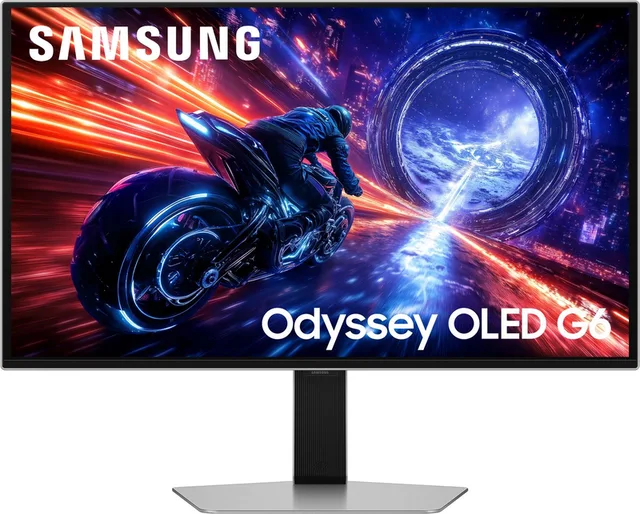
Odyssey OLED G6 LS27FG602SUXEN - QHD OLED Gaming Monitor - 500Hz - 27 Inch
G-SYNC and FreeSync
When your graphics card and screen are out of step, you sometimes see a tear across the picture or the picture stutters. Adaptive sync lets the screen match its rate to the graphics card. AMD calls it FreeSync, NVIDIA calls it G-SYNC. According to NVIDIA, a screen labelled G-SYNC Compatible has no NVIDIA chip of its own but has been validated by NVIDIA for a good basic experience. Check the name or description to see which of the two a screen supports.
Playing on PS5 or Xbox
For 4K at 120 Hz, Sony and Microsoft give the same requirements: a screen with HDMI 2.1, a port that is also HDMI 2.1, and an Ultra High Speed HDMI cable, like the one in the console box. On a screen without HDMI 2.1 the console still works, but not at 120 Hz in 4K. Screens aimed at consoles usually mention HDMI 2.1 in their name, such as the AOC U32G4U and the MSI MAG 272QP QD-OLED. Some name the console itself, such as the Alienware AW3225QF.

Ultrawide and curved screens
An ultrawide screen is wider than normal, with a ratio of about 21:9 instead of 16:9. You see more to the sides, which works well in racing and simulation games. Examples are the 34-inch Samsung Odyssey G5 and the Philips Evnia 34M2C3500L. Not every game supports 21:9; then you see black bars at the sides. Consoles usually run in 16:9 on an ultrawide screen.
For consoles and ultrawide
- AOC
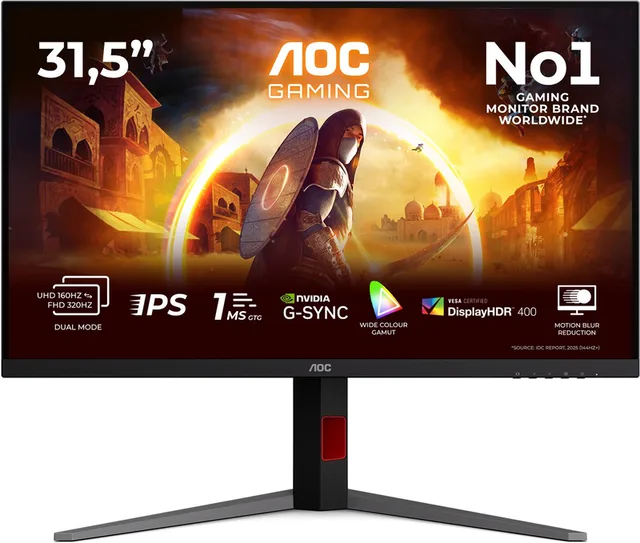
G4 U32G4U - 4K Dual Frame IPS Gaming Monitor - UHD 160hz - FHD 320hz - HDMI 2.1 - Console Ready -32 inch
- Alienware
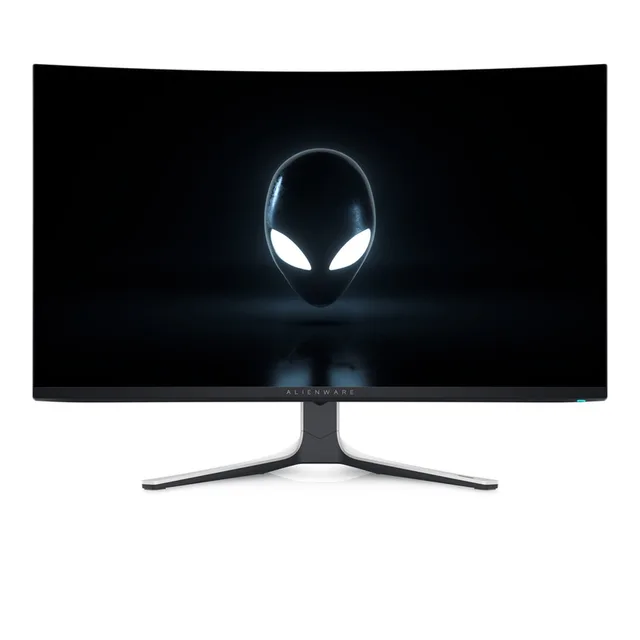
AW3225QF - 4K Curved OLED Gaming Monitor - 1800r Curve - 240hz - PS5 Compatible - 32 inch
- Samsung
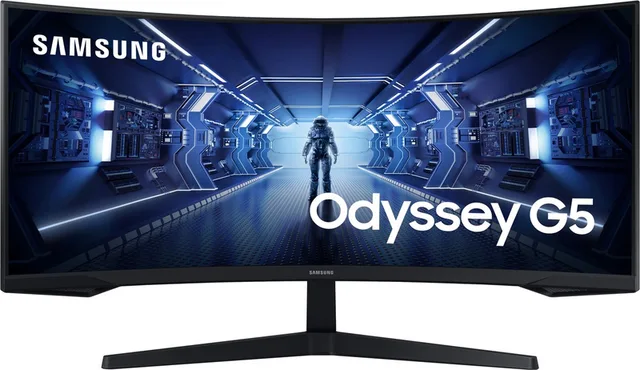
Odyssey G5 LC34G55TWWPXEN - QHD Ultrawide Curved Gaming Monitor - 165Hz - 34 Inch
- Philips
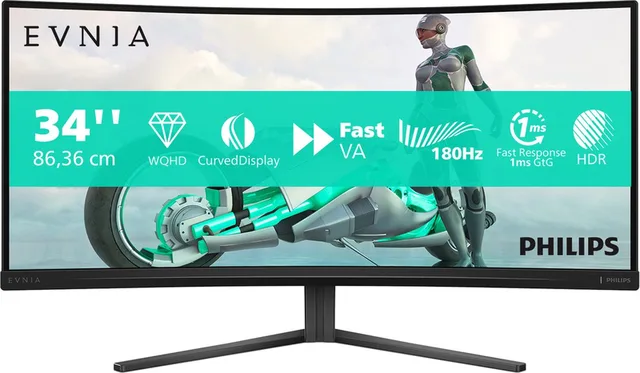
Evnia 34M2C3500L - 34 inch Ultrawide Curved QHD Gaming Monitor - 180Hz
Frequently asked questions
Is 144 Hz enough?
For most games, yes. You see the difference with 60 Hz straight away. Higher rates are mainly worth it if you play competitively and your PC reaches enough frames per second.
Can an OLED screen burn in?
Yes, with images that stay in the same place for a long time. Makers build in protection and some give a warranty that covers burn-in. If the picture changes a lot, as in gaming and watching video, the risk is smaller.
Do I need HDMI 2.1 for my PS5?
Only if you want to play in 4K at 120 Hz. For 60 Hz an ordinary HDMI port is enough.
Keep browsing
GameCrew does not test products. This guide sums up what manufacturers and publishers state. Always check the manufacturer for the details.
More guides
- Gifts for gamers: ideas for Sinterklaas and Christmas A game, a second controller, a headset or something small: how to choose a gift that fits the gamer's console. Read the guide
- Buying a gaming PC: graphics card, processor and size Which gaming PC suits your screen and your desk? The graphics card, video memory, X3D processors, case size and upgrading explained. Read the guide
- Choosing a gaming keyboard: membrane or mechanical? Membrane or mechanical, which switch and which size: how to pick a gaming keyboard that suits your games and your desk. Read the guide